
Getting Started 2 min read
Create Your First Short Link
Learn how to shorten your first URL with Short10 in under a minute. We'll walk you through each step with screenshots.
1
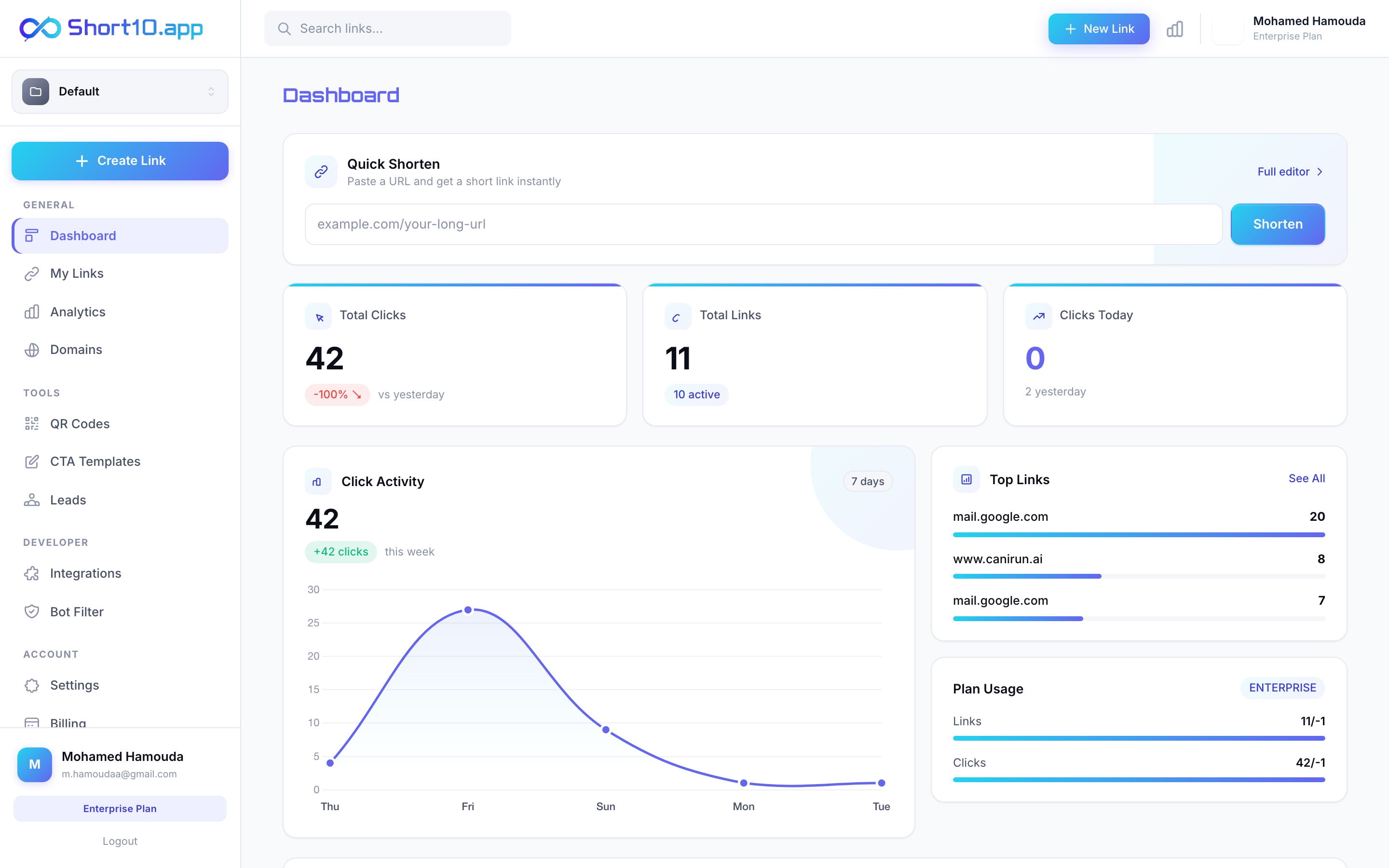
Click "Create Link" in the sidebar
After logging in, you'll see the dashboard. Click the "Create Link" button at the top of the sidebar to get started.
2
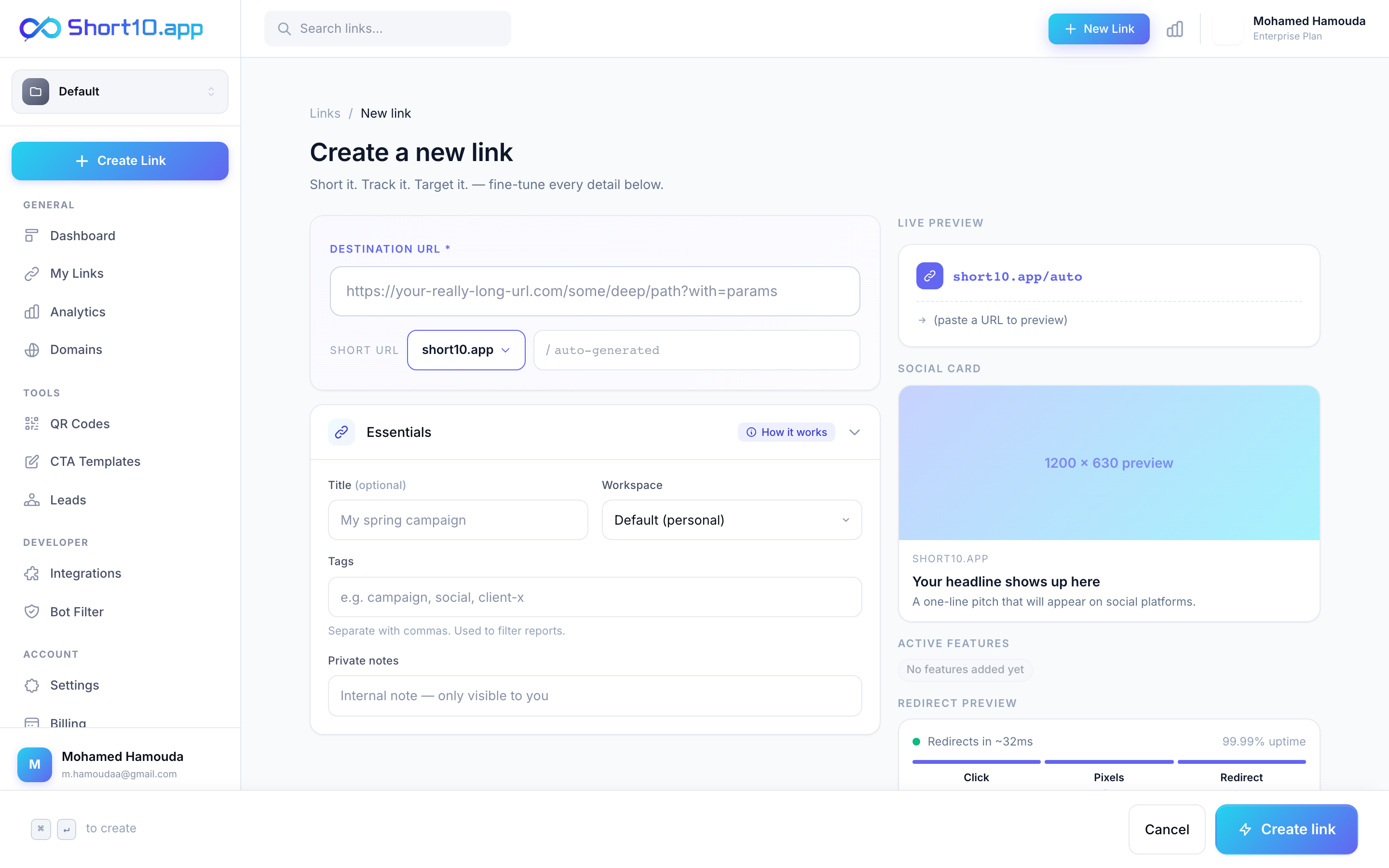
Paste your destination URL
In the "Destination URL" field, paste the long URL you want to shorten. Short10 will automatically validate it.
3
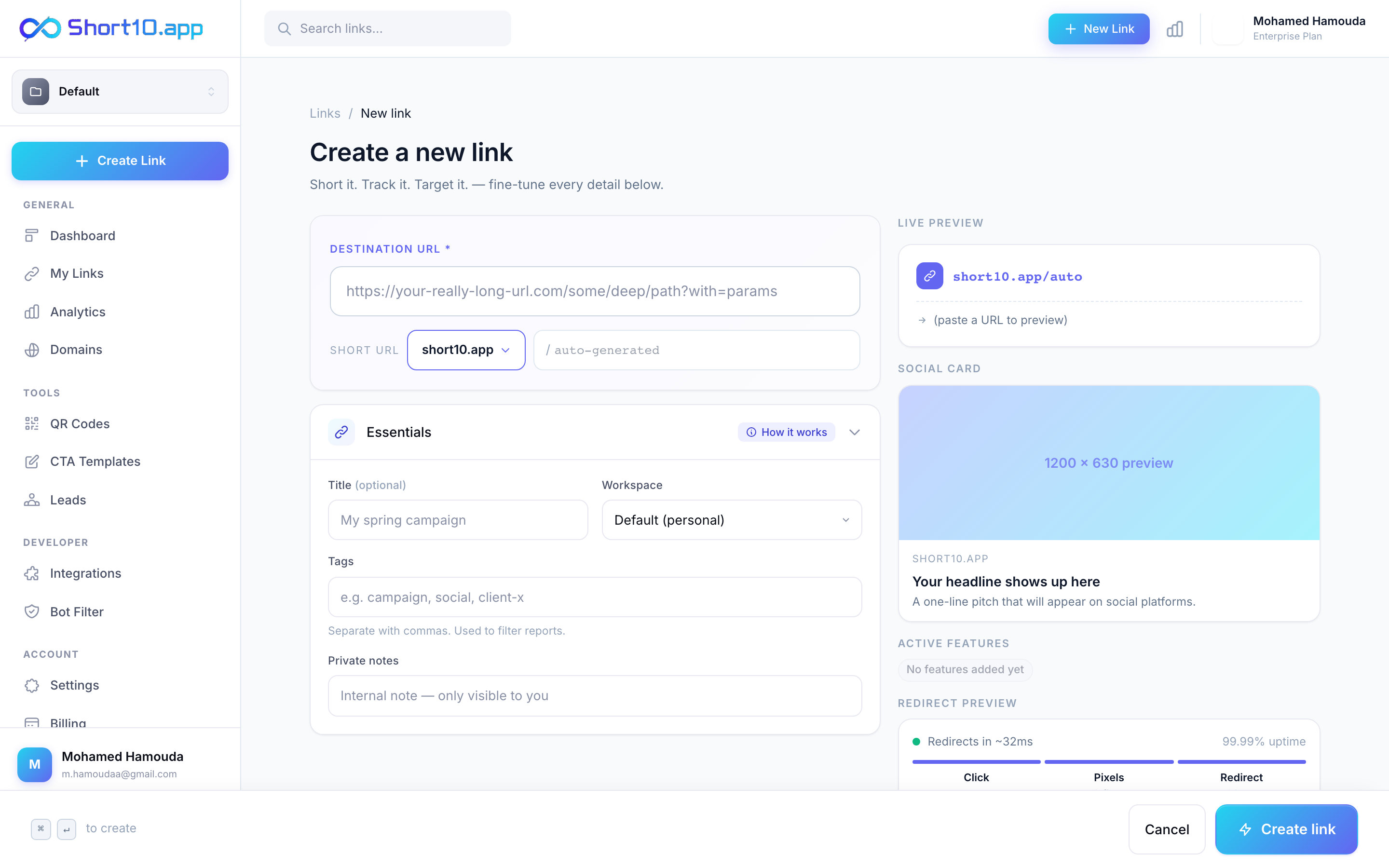
Add a title and custom alias (optional)
Give your link a descriptive title so you can find it later. You can also set a custom alias (e.g., short10.app/my-promo) instead of a random code.
4
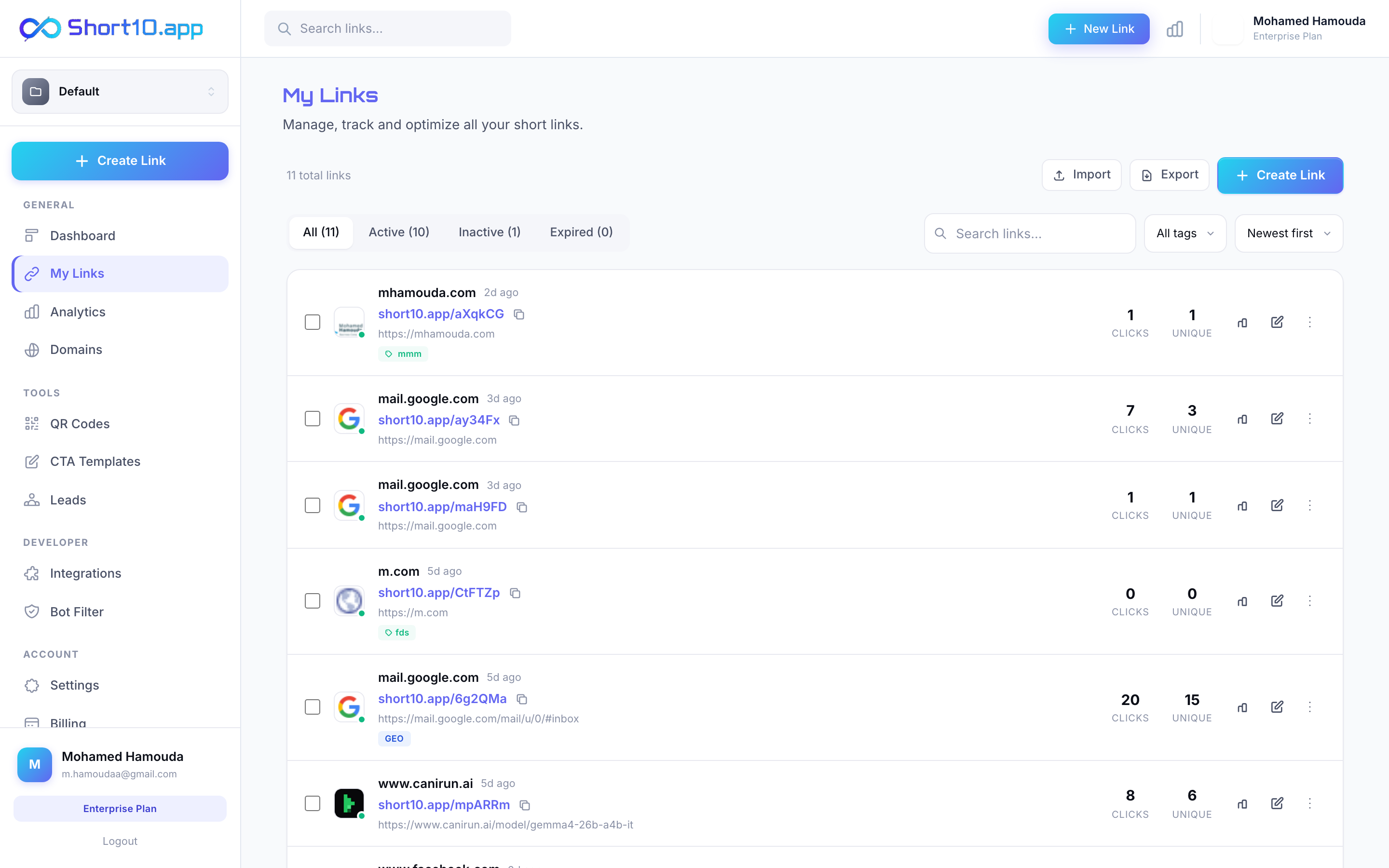
Click "Create Short Link"
Hit the button and your link is ready! You'll be redirected to the link detail page where you can copy the short URL, view analytics, or add advanced options like password protection.
Pro Tips
- Use descriptive aliases like
/summer-saleinstead of random codes for better click rates. - Add UTM parameters to your destination URL to track campaigns in Google Analytics.
- You can always edit your link later — change the destination, add a password, or set an expiration date.